Issuing AuthorityBatch Issuance
How Do I View a Batch Issuance?
Learn how to access and review Batch Issuances in FilPass, including how to locate a specific batch, open batch details, and view the document statuses of recipients.
batch-issuance

Fetching content...
This section explains how to upload the excel file for uploading the batch issuance.
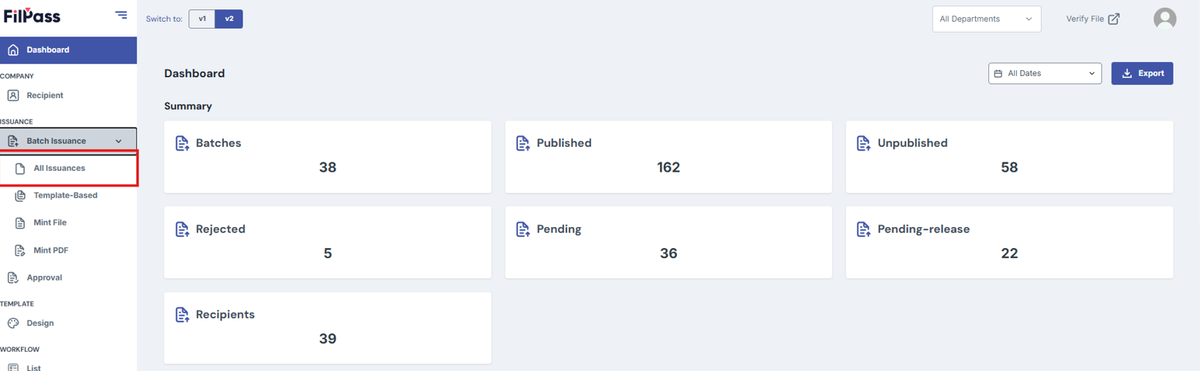
1. Click the "Batch Issuance" tab > All Issuances.
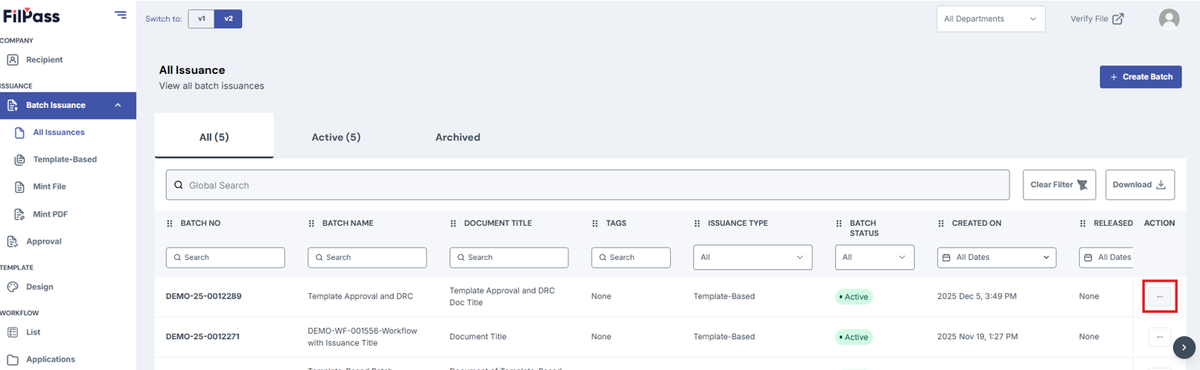
2. Select a batch and click the three-dot button under "Action."
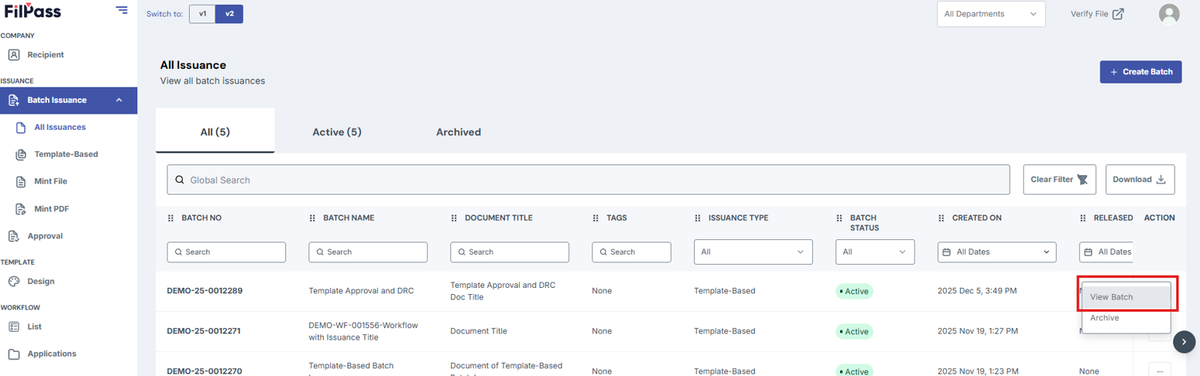
3.Click “View Batch” button
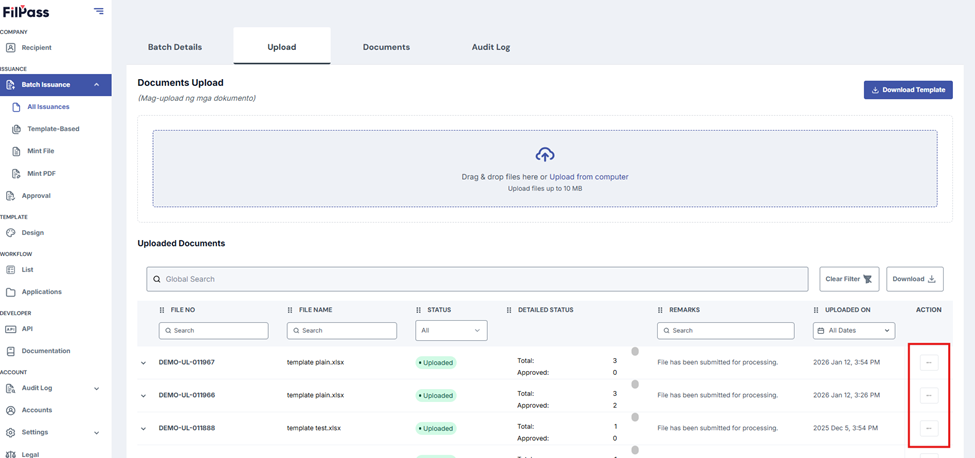
4.Go to the “Upload” tab
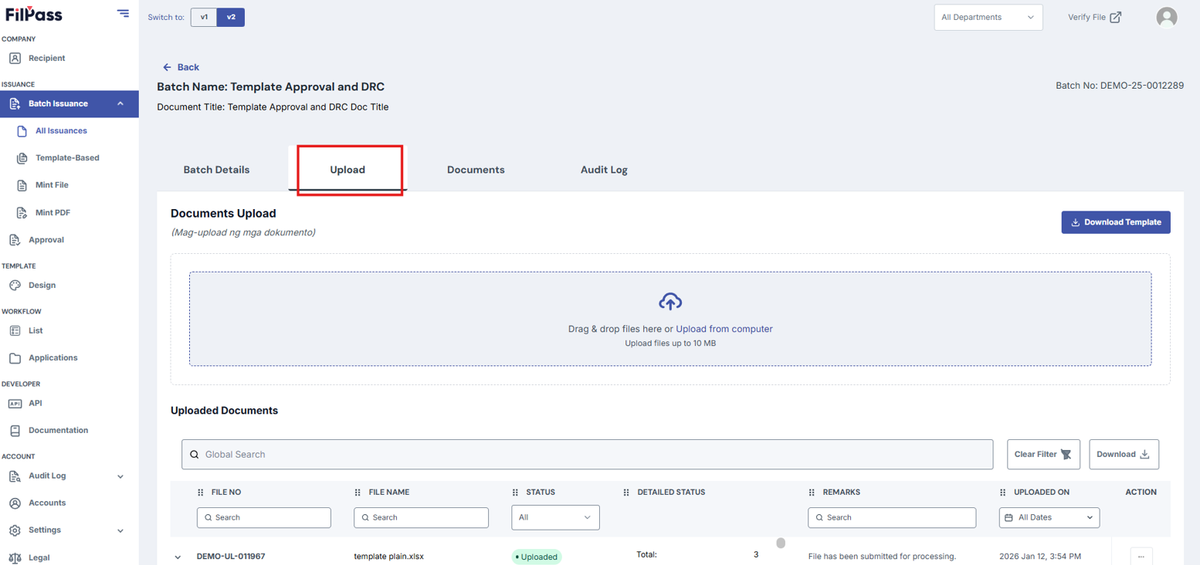
5. Click "Download Template" to download the Excel file.
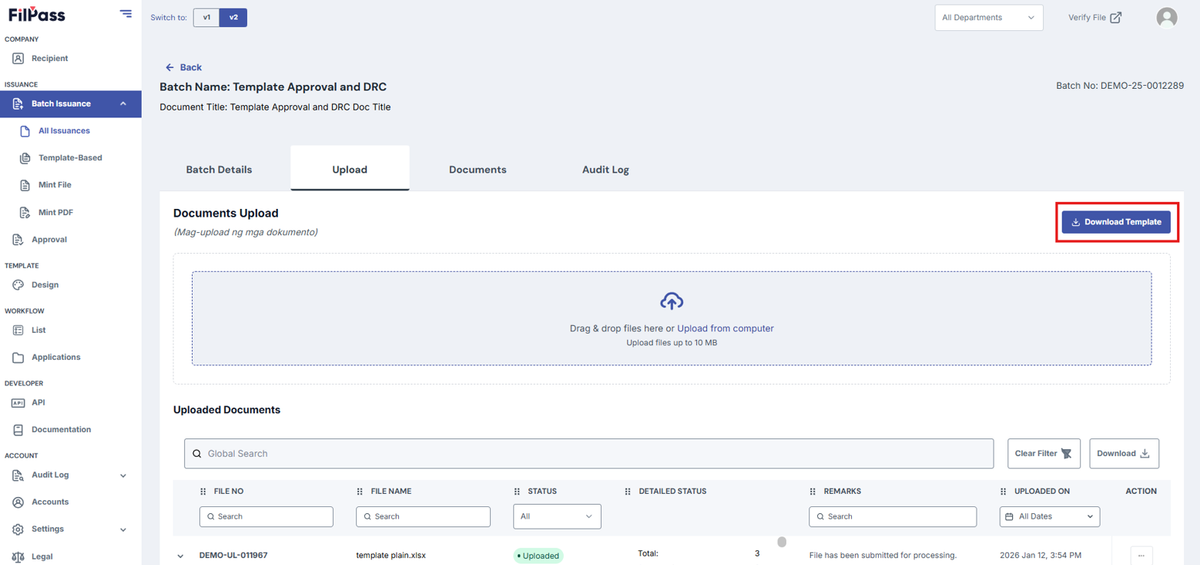
6. The file will be downloaded, click to open the excel file
7. Enter the recipient's credentials in the Excel sheet.
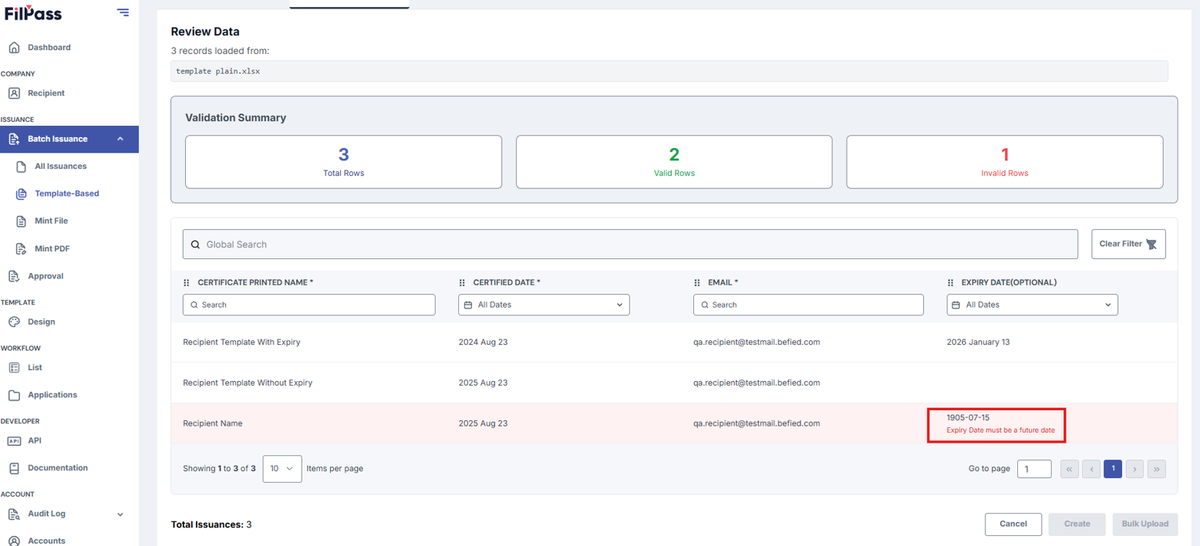
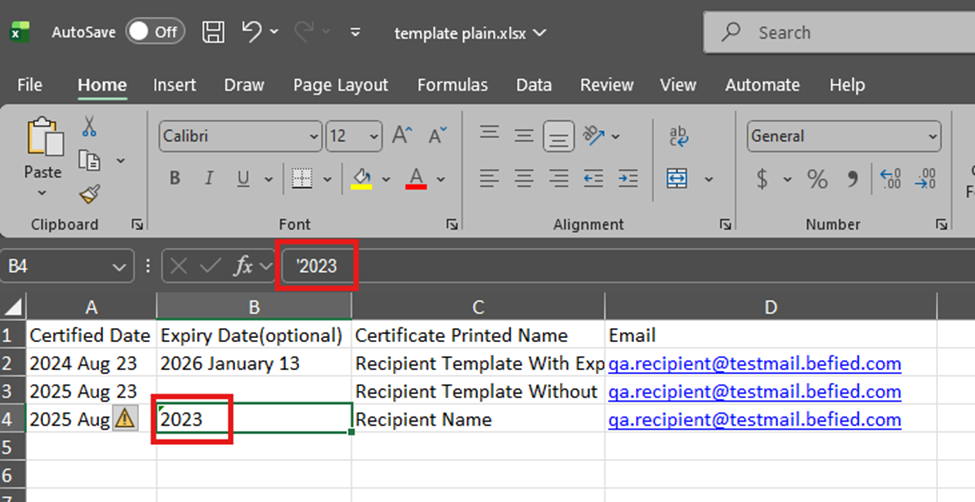
Note: For Dates and Numbers inside the Excel file template, please add an Apostrophe in front of the data input to reflect properly on the system. The content changes due to Excel’s auto-formatting.
Sample Scenario:
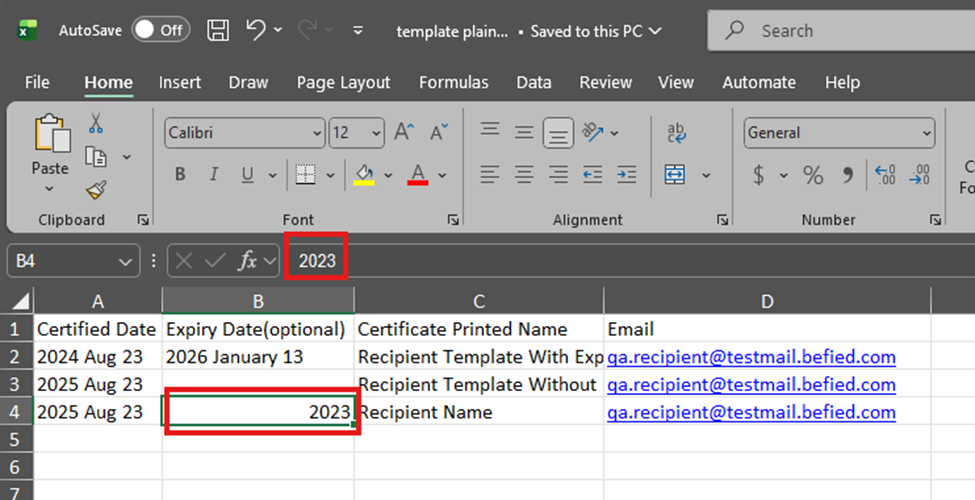
The data above would reflect inside the system differently.
If the Apostrophe is added to the excel template upload, the data will be retained and reflected as the expected input.
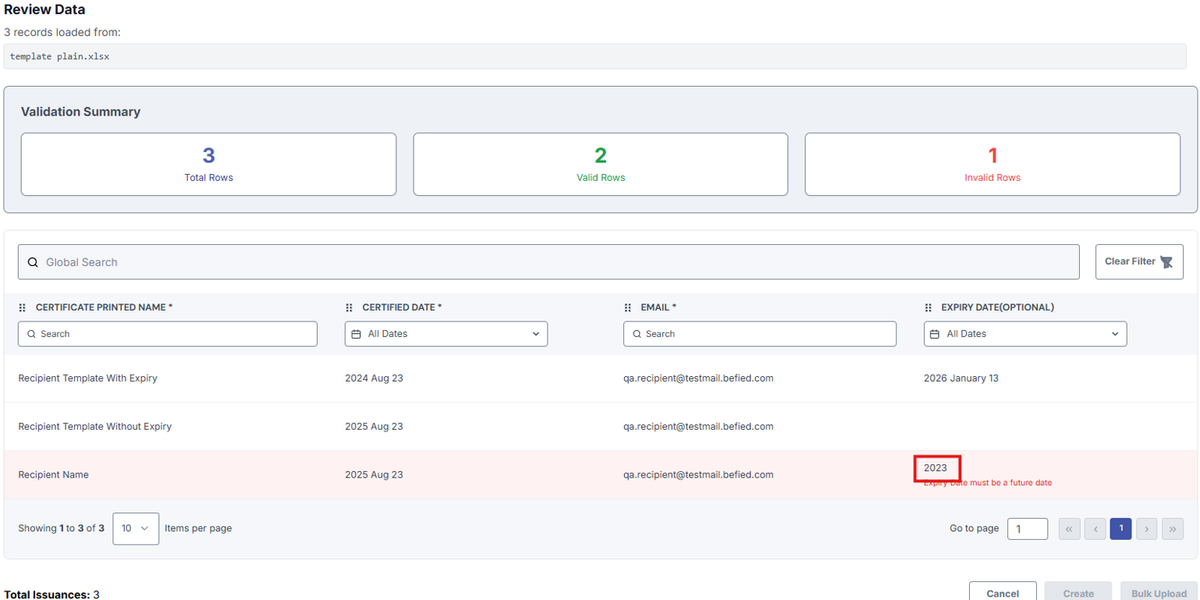
8. Drag and drop the downloaded template or Upload from computer
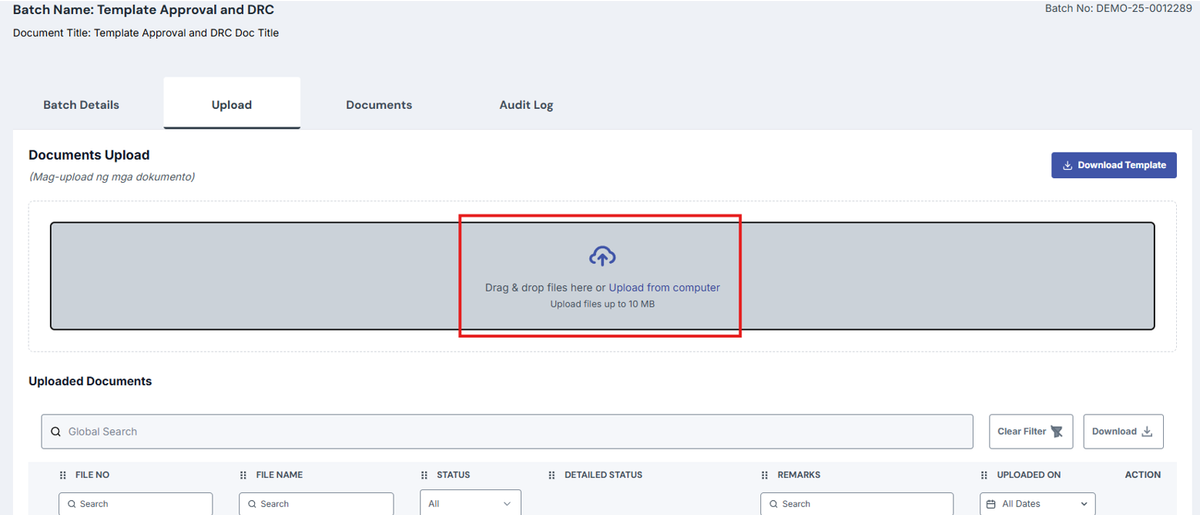
9. Review the data before clicking "Create."
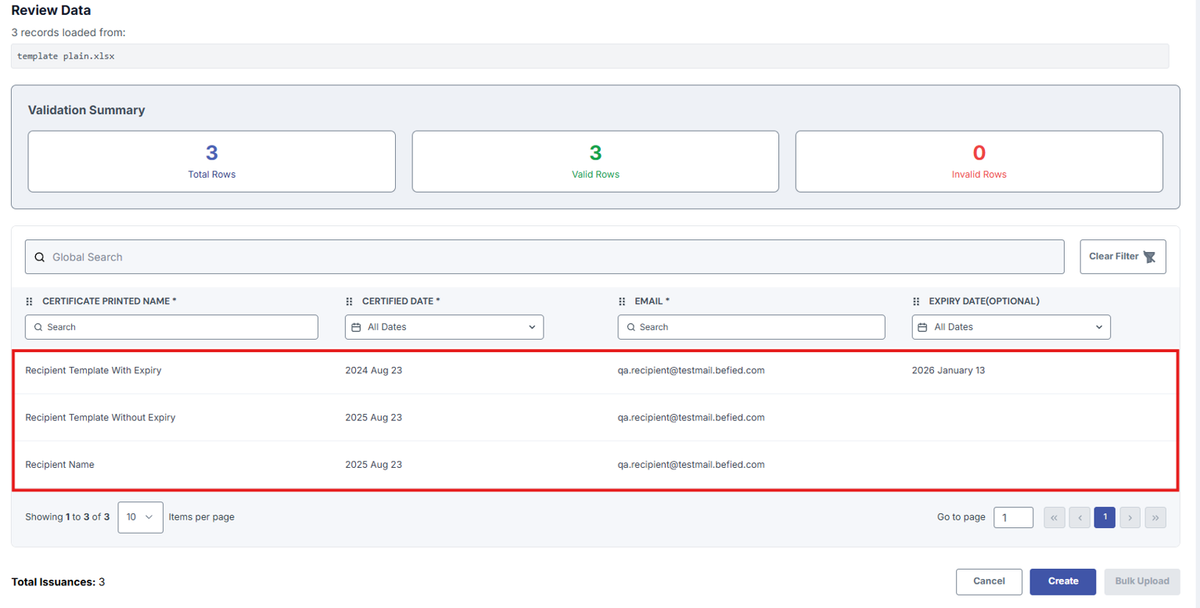
10. A pop-up message will confirm successful document creation.

11. Uploaded Document Audit Trail
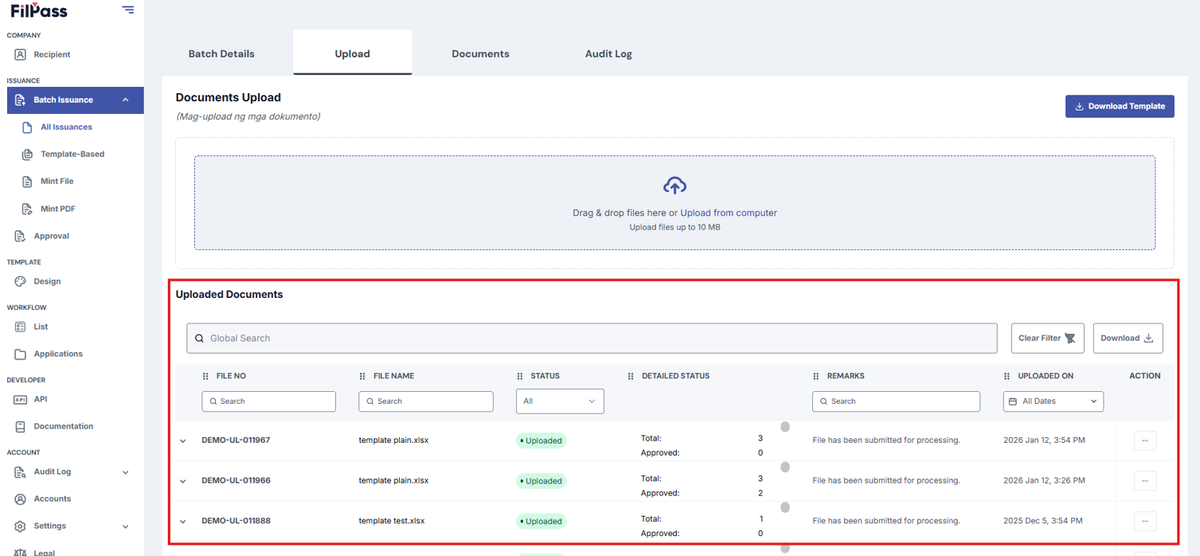
There are two ways for an Issuing Authority to approve documents.